Getting Started
FAQ
Video Tutorials
Payments and Subscriptions
Safety and Moderation
Technical Support
How-Tos
How to Create a World
How To Publish Your World
How to Change World Images
How to Delete a World
How to Clone a World
How to use the Entity Panel
How to use the Inspector Panel
How to Lock Objects
How to select Multiple Objects
How to Group Objects
How to Rig a Character
How to Animate a Character
How to Control a Character
How to Change Materials
How to Move Objects
Create Objects with Text
Create Objects with Images
Create Objects with Idea Forge
Create Primitive Shapes
Create Duplicate Objects
Edit Ground Environments
How to Optimize Polygon Count
Create Particle Systems
How to Builder Bag
How to Workbench
How to Attachments
AI Models Best Practices
Exporting and Importing
Audio
Lighting
Physics
Gameplay
Nilo Discord
Nilo YouTube
Nilo TikTok
Nilo Instagram
Play Nilo
    Home
  1. How-Tos
  2. How to Change Materials

How to Change Materials

Last updated 6 months ago

Material options are available for primitive objects.

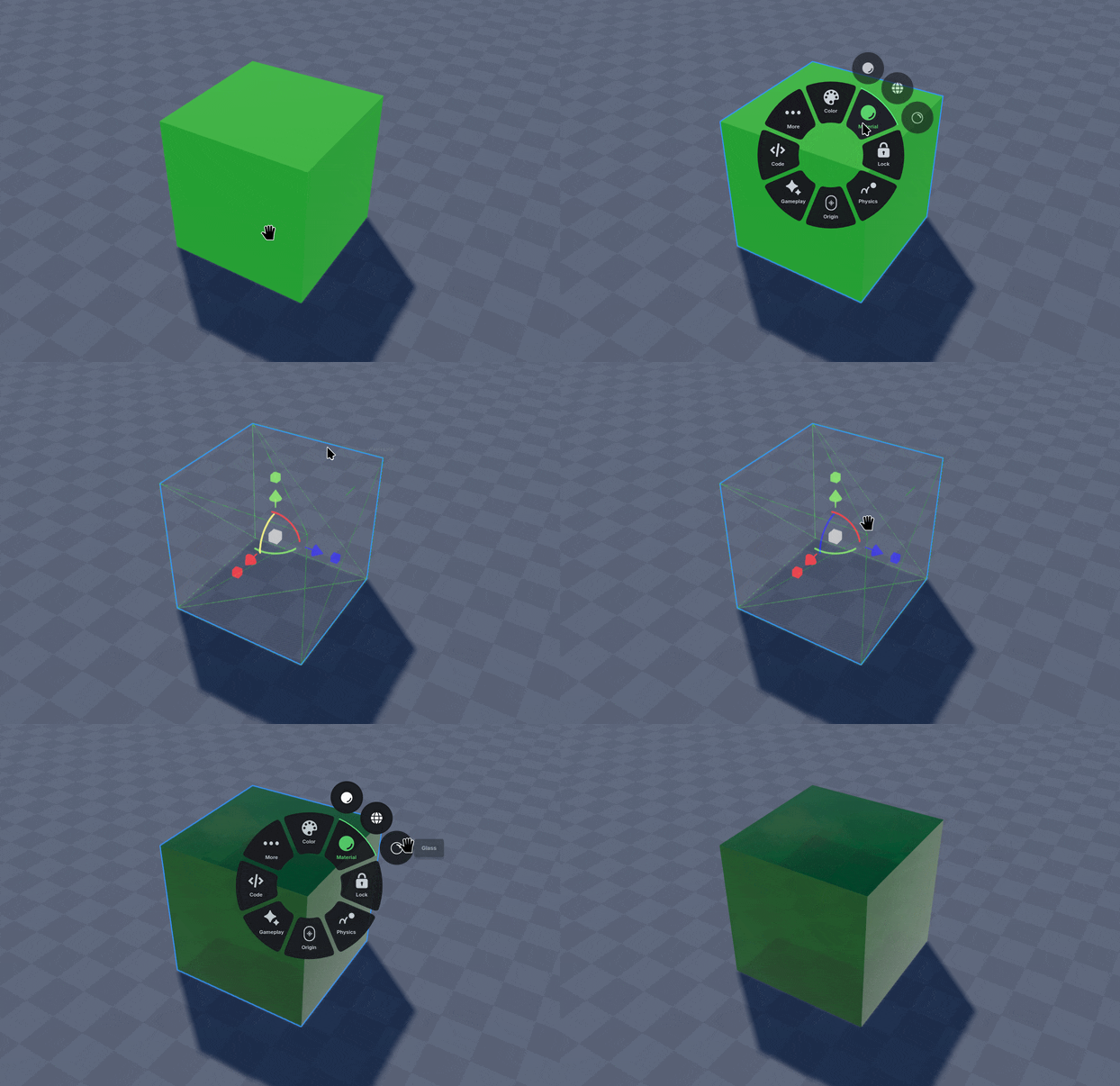
To change the material, Right Click a primitive object and select the Material option.

The Default material will use a basic PBR (Physically Based Rendering) material with a Base Color.

The Wireframe material will show an outline of the polygons of the primitive.

The Glass material will include transparency on the PBR material, making other objects visible through the primitive.
Was this helpful?