Getting Started
Purchases
Safety and Moderation
Technical Support
How tos
How to Create a World
How to Change World Images
How to Delete a World
How to Clone a World
How to use the Entity Panel
How to use the Inspector Panel
How to Lock Objects
How to select Multiple Objects
How to Group Objects
How to Rig a Character
How to Animate a Character
How to Control a Character
How to Change Materials
How to Move Objects
Create Objects with Text
Create Objects with Images
Create Objects with Idea Forge
Create Primitive Shapes
Create Duplicate Objects
Edit Ground Environments
How to Optimize Polygon Count
Create Particle Systems
AI Models
Exporting and Importing
Audio
Lighting
Physics
Gameplay
Nilo Discord
Nilo YouTube
Nilo TikTok
Nilo Instagram
Play Nilo
    Home
  1. How tos
  2. How to Lock Objects

How to Lock Objects

Last updated 7 days ago

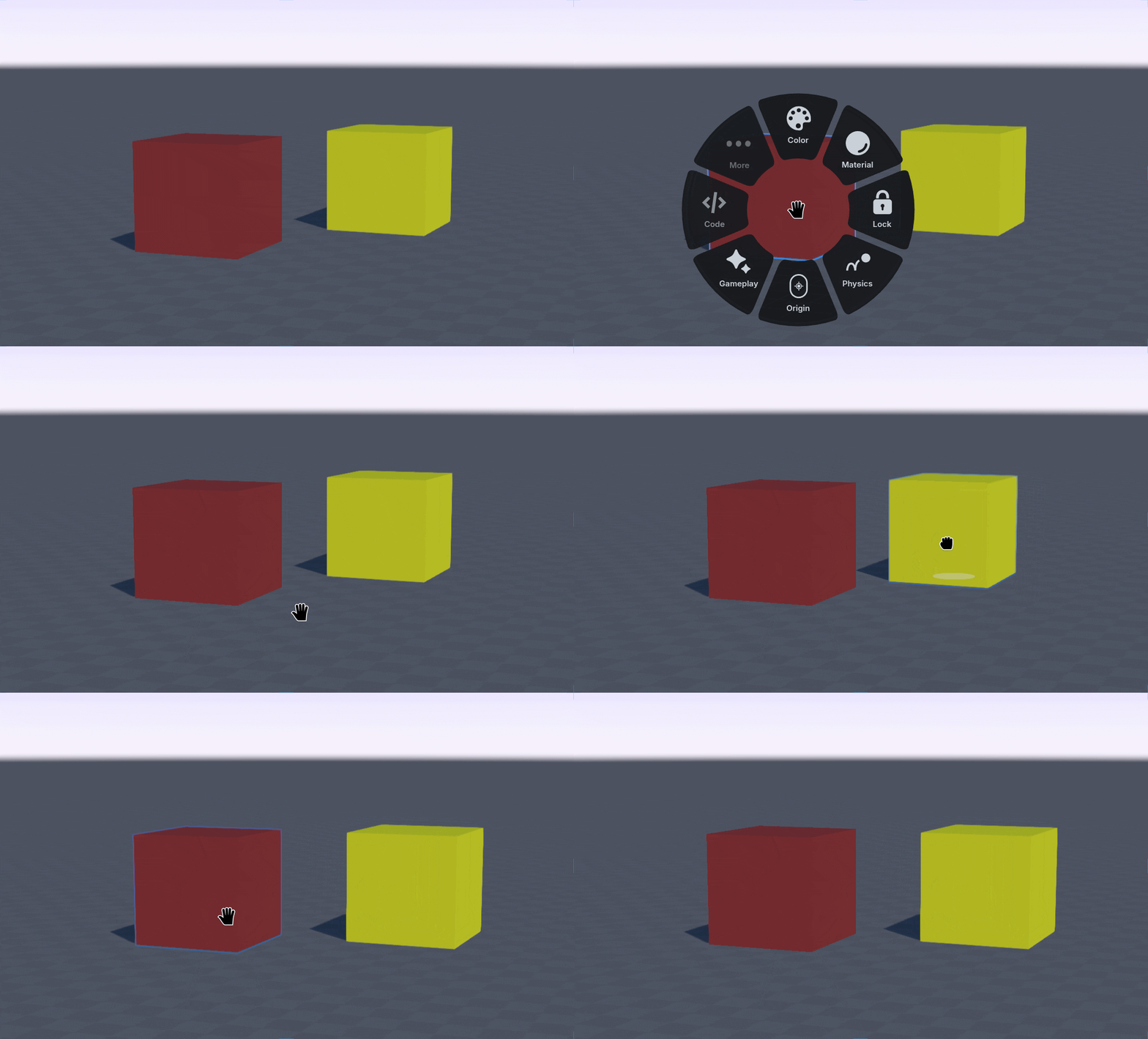
Select an object

Right Click to open the radial menu

Select the πŸ”’ "Lock" option

Locked objects are not able to be interacted with until they unlocked. To unlock an object, select the object, then the πŸ”’ Lock option again.

Using the shortcut key L can lock objects quickly, especially when used with a group selection method.

Was this helpful?