Edit Ground Environments
Last updated About 1 month ago
Select the 🌎 Icon in the top left of the screen to open the Environment panel.
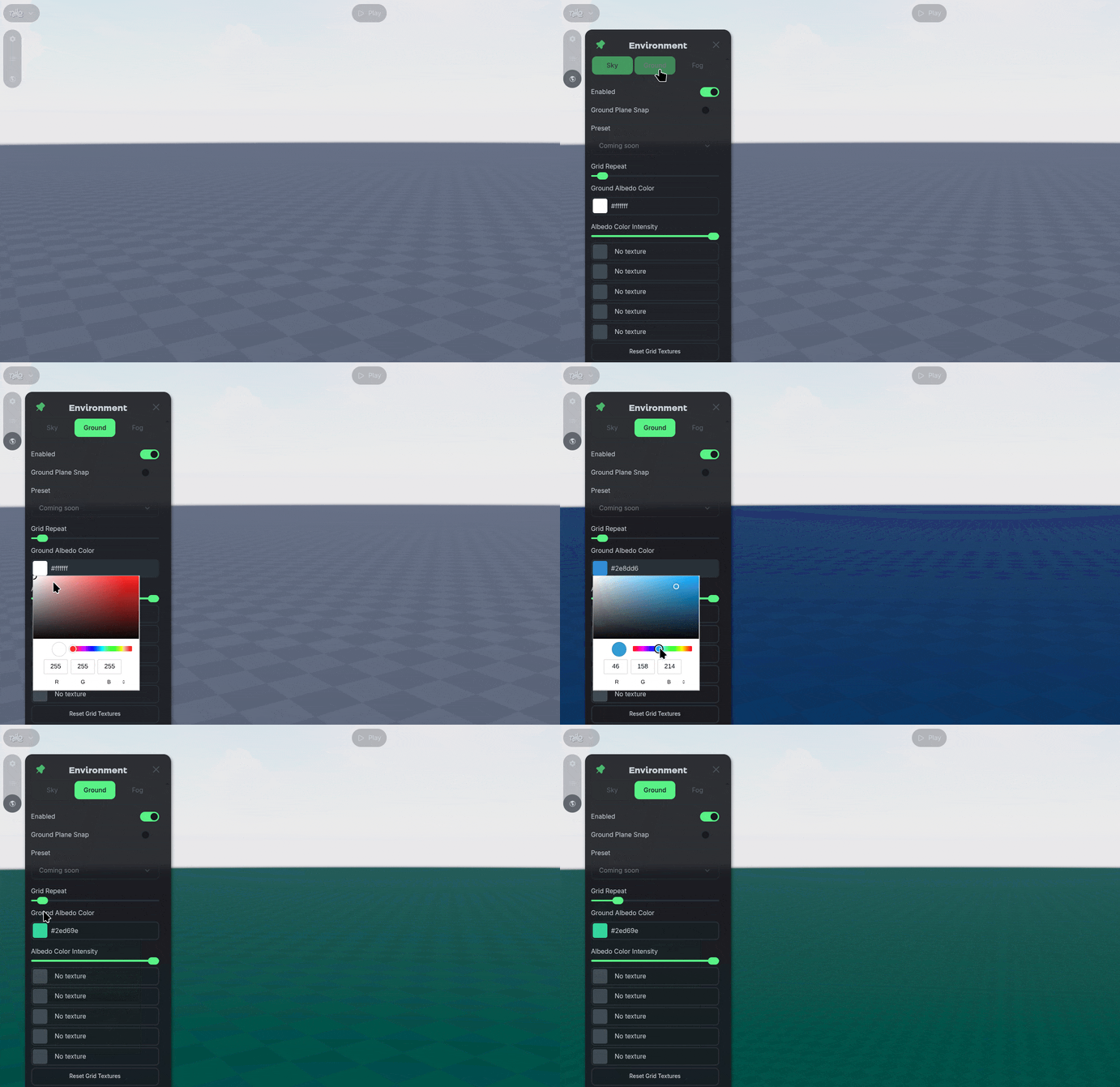
Select the Ground tab to adjust the desired settings.
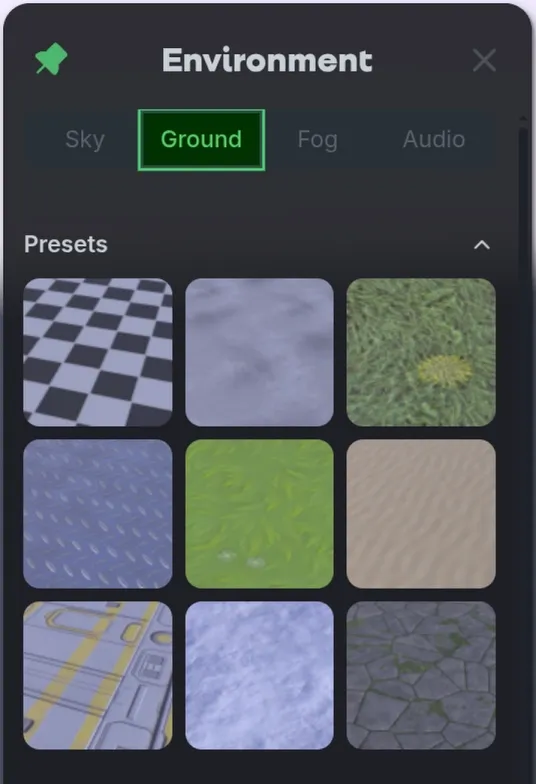
Select from the preset grid to apply preconfigured ground settings and textures.
The Enabled option toggles the ground floor.
Without a ground floor, objects that have physics may fall through the world until they respawn.
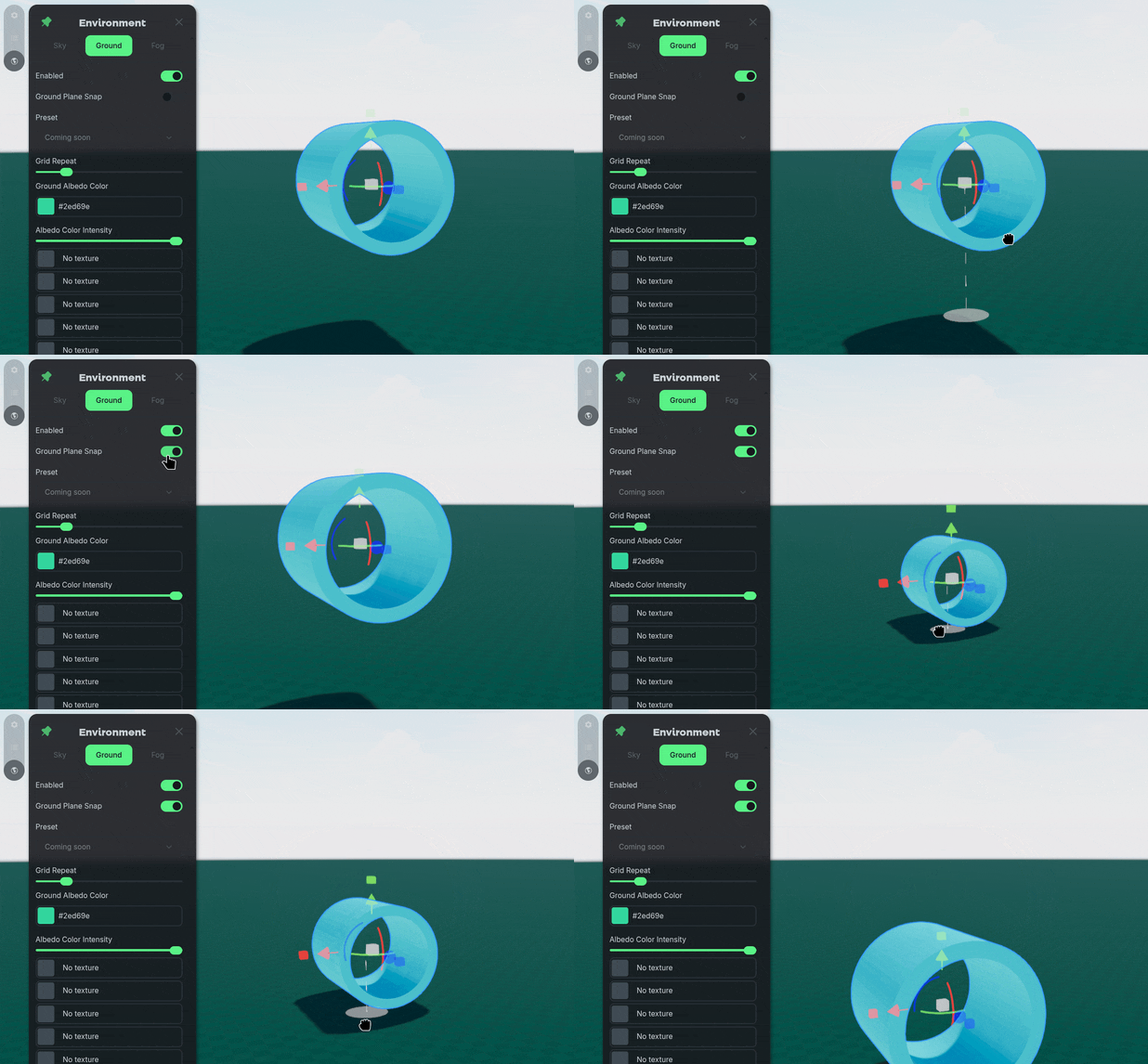
The Ground Plane Snap option toggles if an object will snap to the ground level when moved.
The Ground Albedo Color changes the color of the ground, alongside any textures applied to the ground.
The Texture slots accept what is typically expected in a PBR (Physically Based Rendering) shader.
Base Color (Albedo) – the main color of the ground
Metallic – how metallic the ground is
Roughness – how smooth or rough the ground is
Normal Map – small surface detail bumps
Ambient Occlusion (AO) – shadowing in crevices
Was this helpful?
Still need help? Ask the team