Adjusting Ground Environments
Last updated 4 days ago
Navigate to the top left of the screen and select the ☰ Scene Panel icon, then select the Ground option.
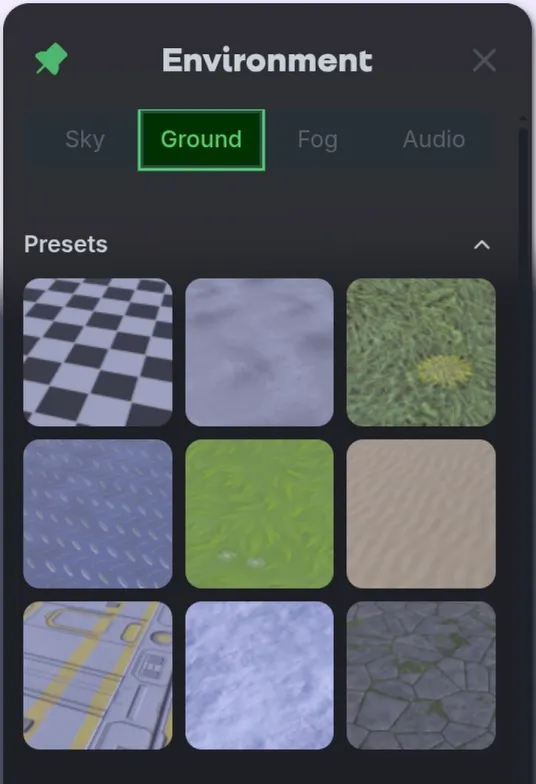
Select from the preset grid to apply preconfigured ground settings and textures.
The Enabled option toggles the ground floor.
Without a ground floor, objects that have physics may fall through the world until they respawn.
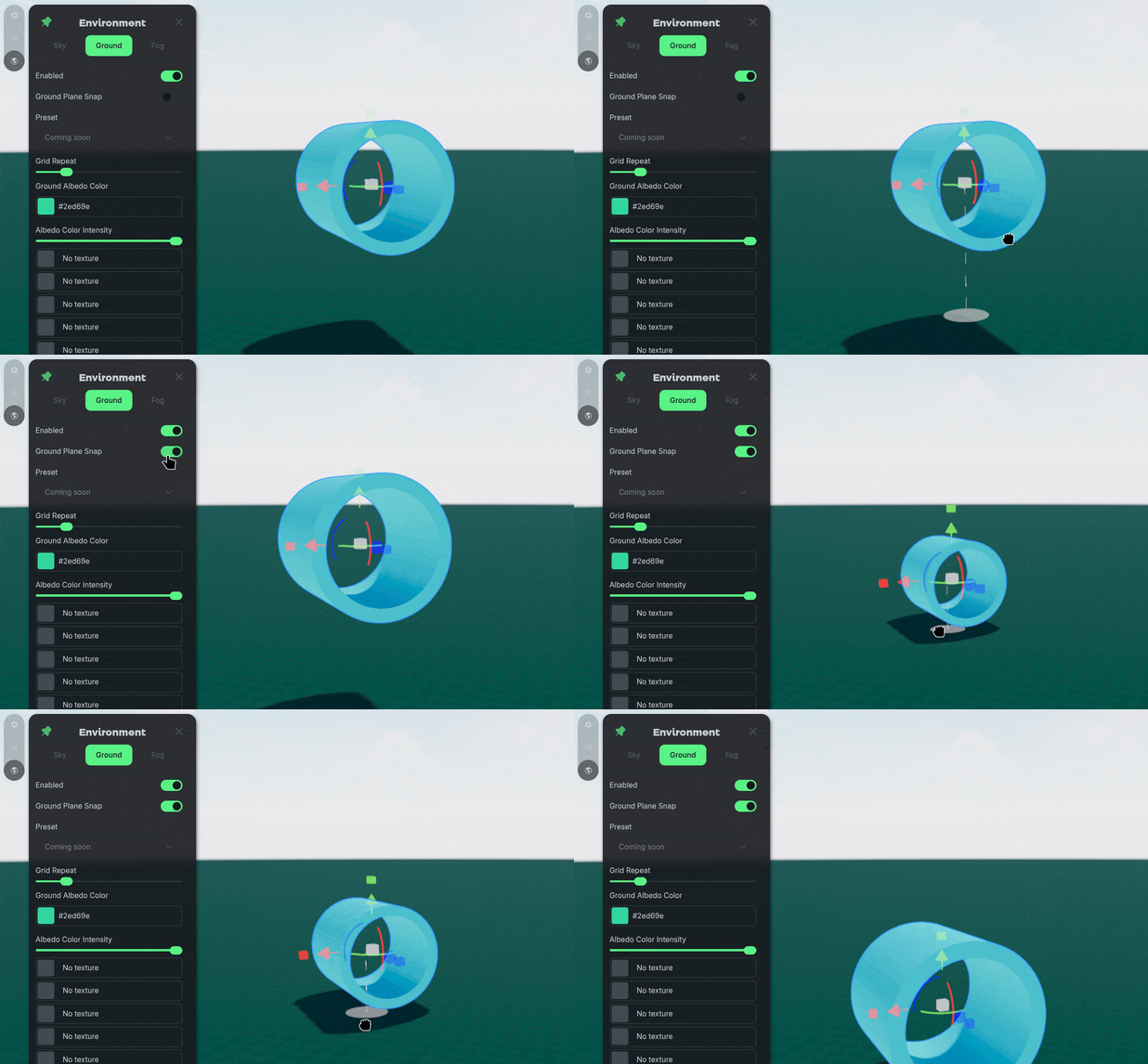
The Ground Plane Snap option toggles if an object will snap to the ground level when moved.
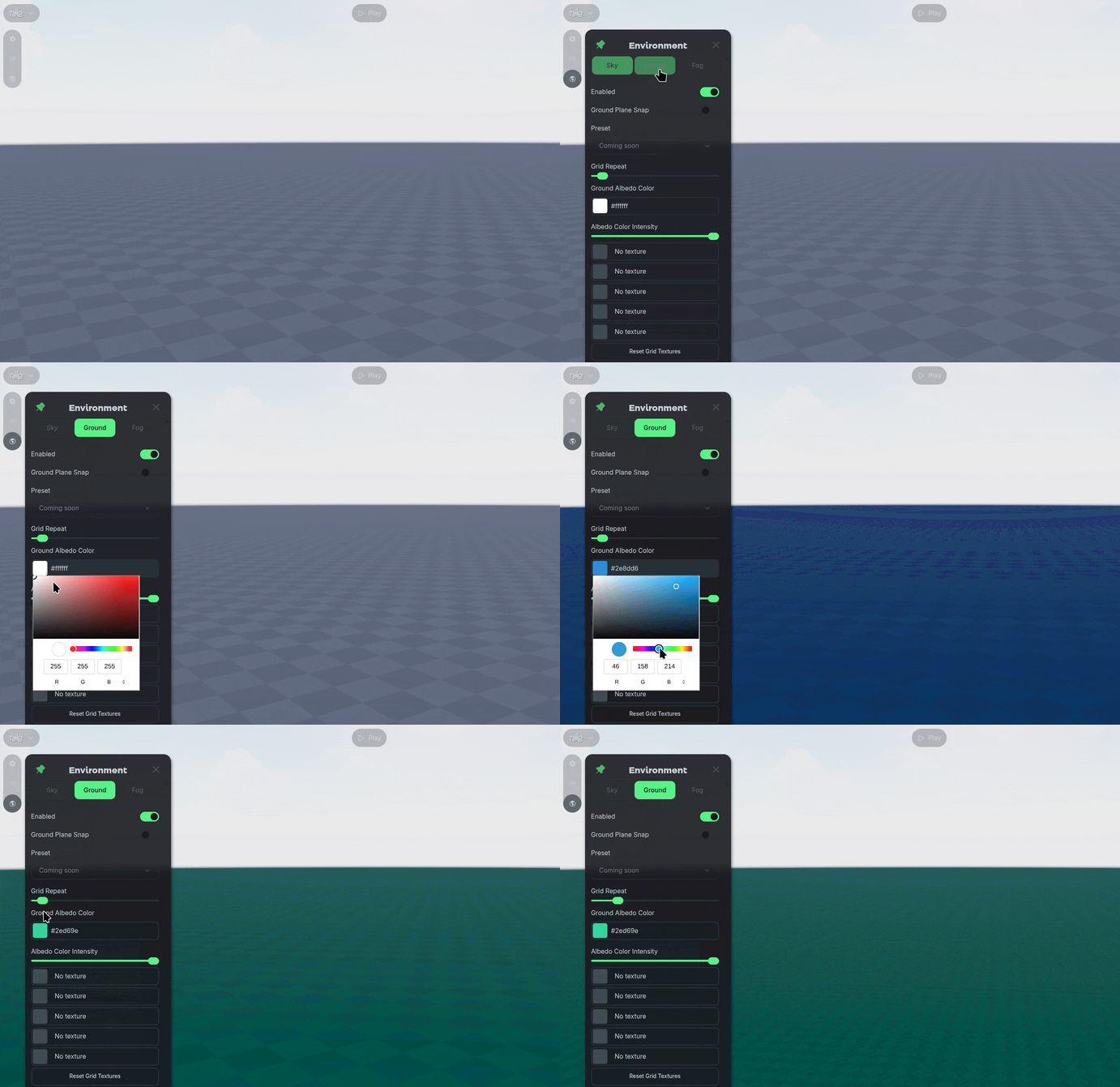
The Ground Albedo Color changes the color of the ground, alongside any textures applied to the ground.
The Texture slots accept what is typically expected in a PBR (Physically Based Rendering) shader.
Base Color (Albedo) – the main color of the ground
Metallic – how metallic the ground is
Roughness – how smooth or rough the ground is
Normal Map – small surface detail bumps
Ambient Occlusion (AO) – shadowing in crevices
Was this helpful?
Still need help? Ask the team