Adjusting Sky Environment
Last updated 7 days ago
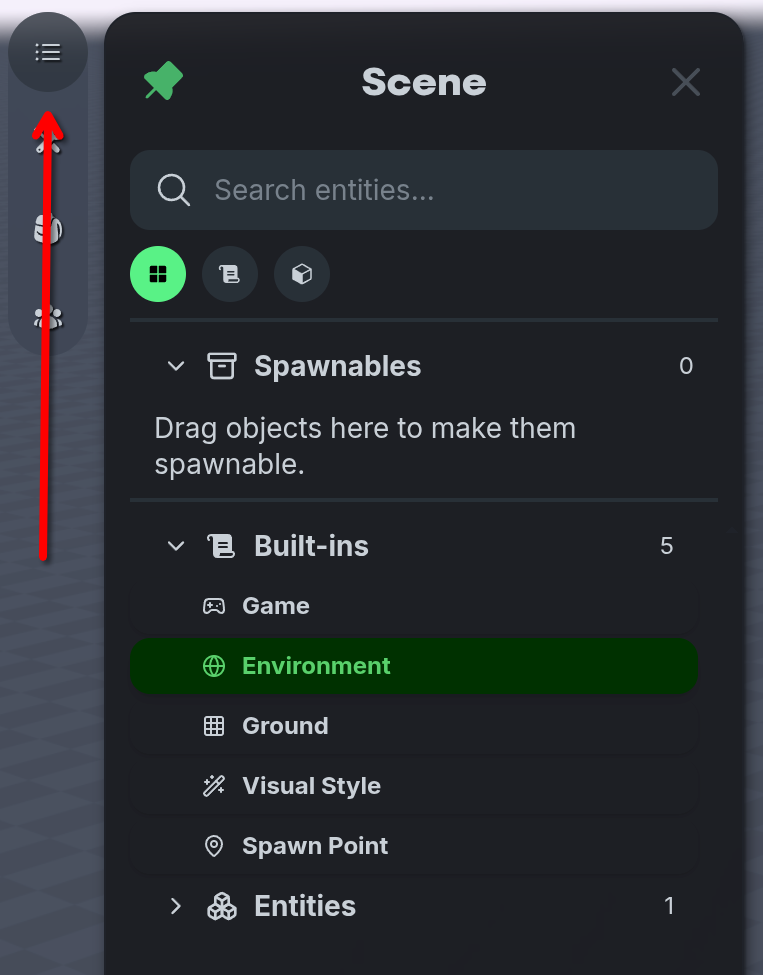
Navigate to the top left of the screen and select the ☰ Scene Panel icon, then select the 🌎 Environment option.
Skybox Presets
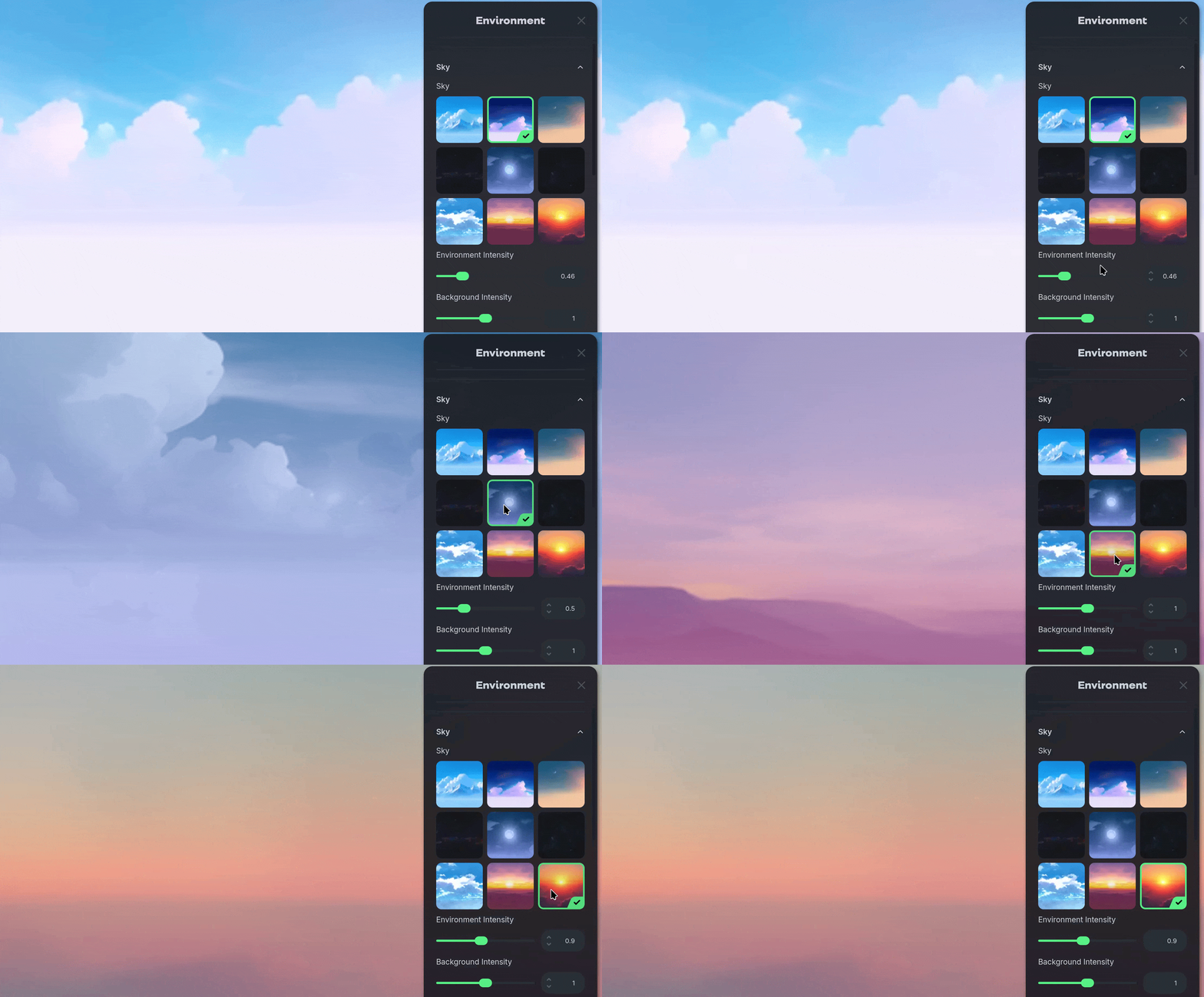
On the Sky panel, adjust the settings of the sky environment to suit your world.
Select from the preset grid to apply preconfigured sky, lighting settings and textures.
Sky Environment Settings
Custom Textures
Custom Textures
Nilo’s default sky texture can be replaced with a custom image you upload. To do so, select the Sky Texture box and upload your own image file. Make sure it’s a standard image file type like PNG, JPEG, or WEBP.
Environment Intensity
Environment Intensity
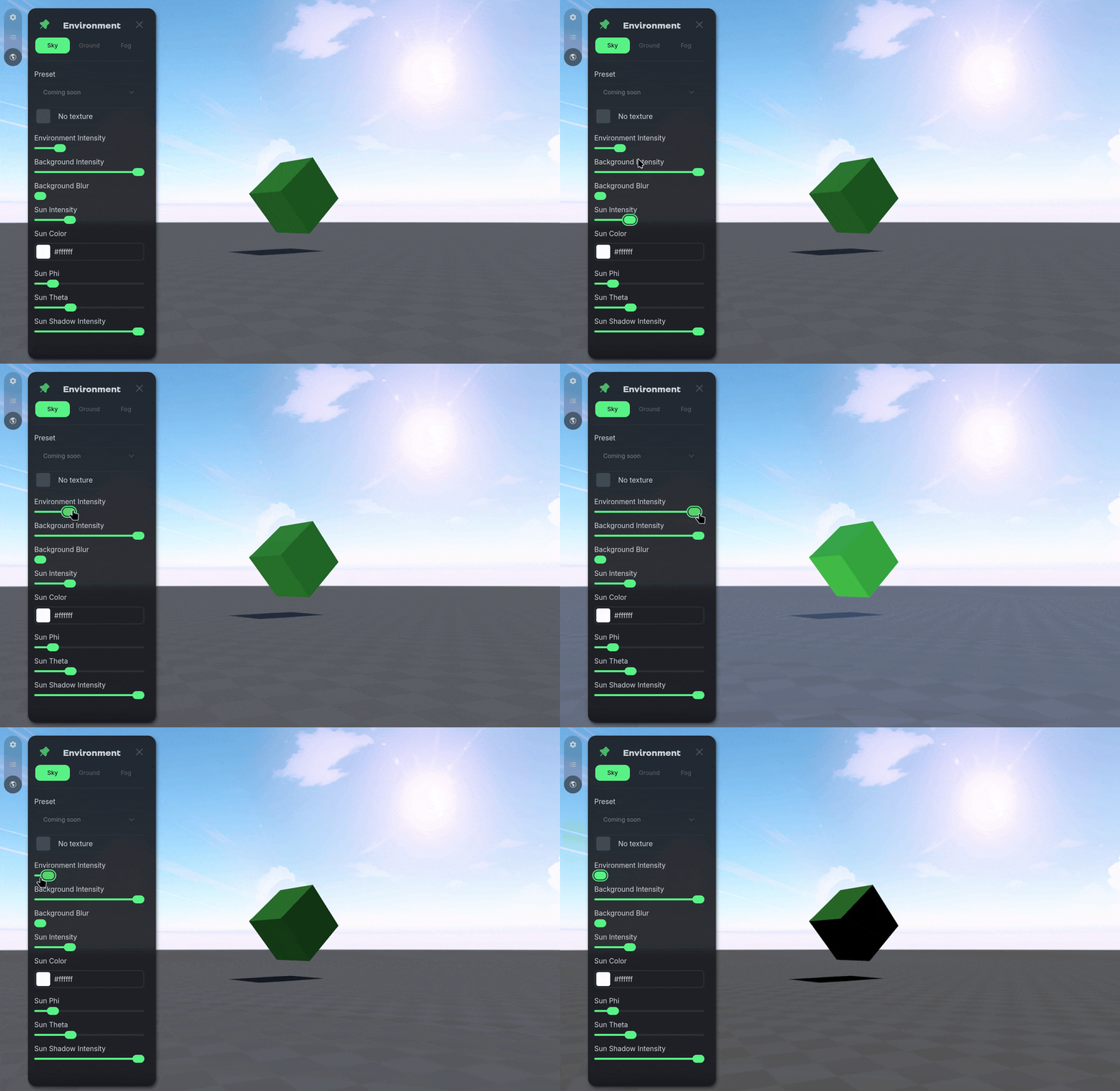
Adjusts how much of the World’s colors are affected by your sky texture.
Background Intensity & Blur
Background Intensity & Blur
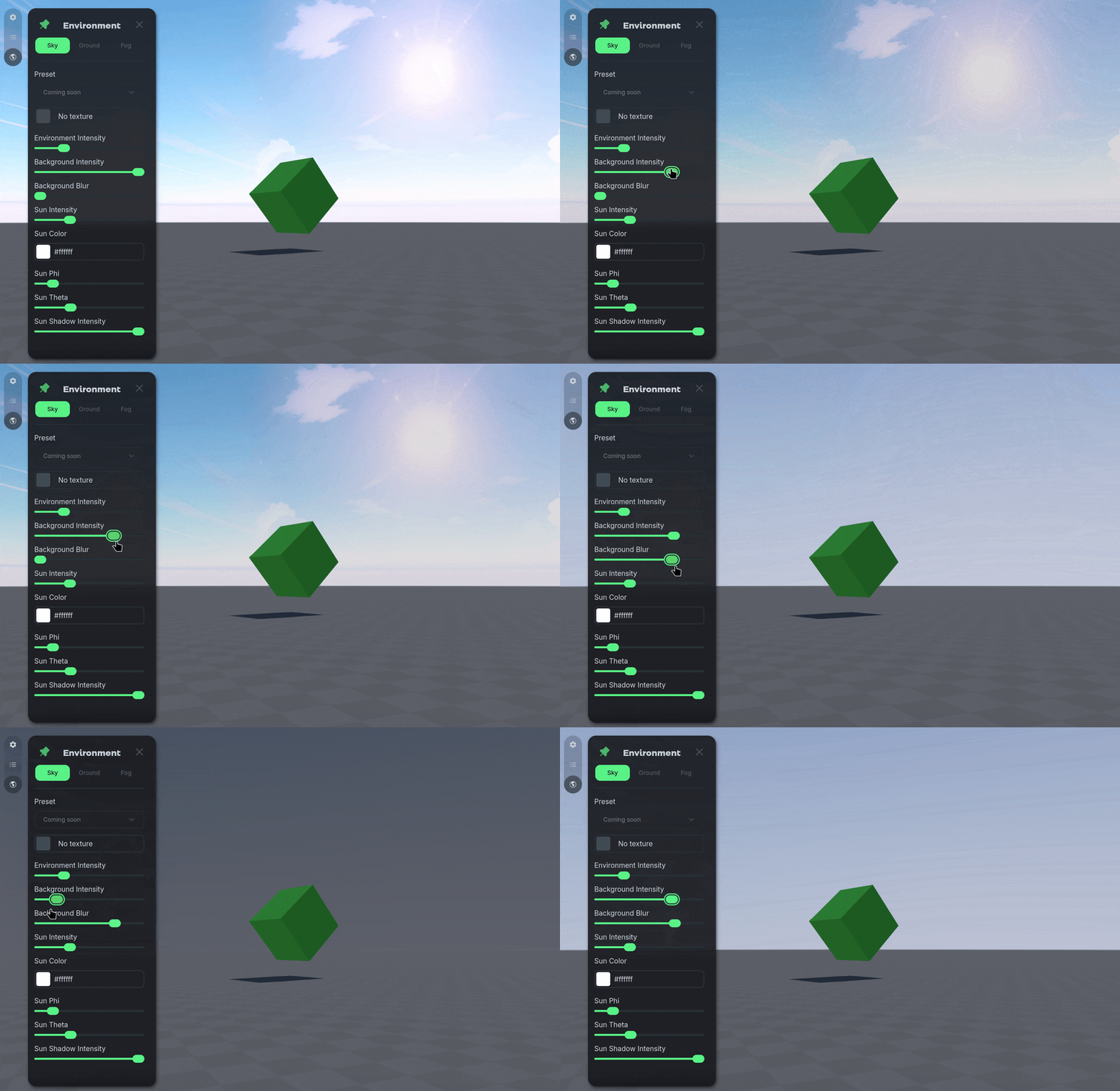
Adjusts the lighting values or image clarity of your skybox texture.
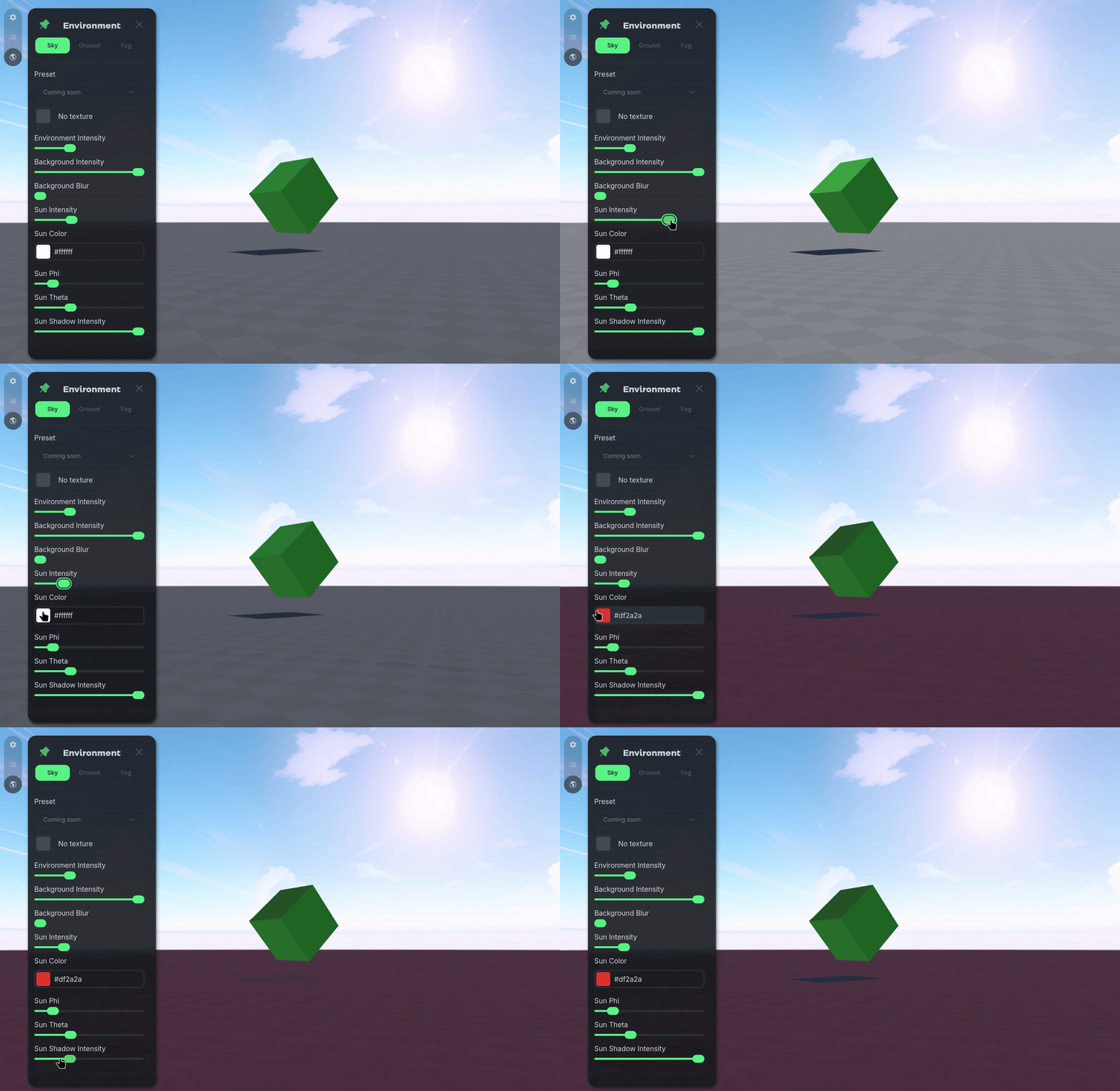
Sun Intensity, Color, Shadow
Sun Intensity, Color, Shadow
Adjusts the amount of light, what color the light is, and if the light casts shadows on objects in the World.
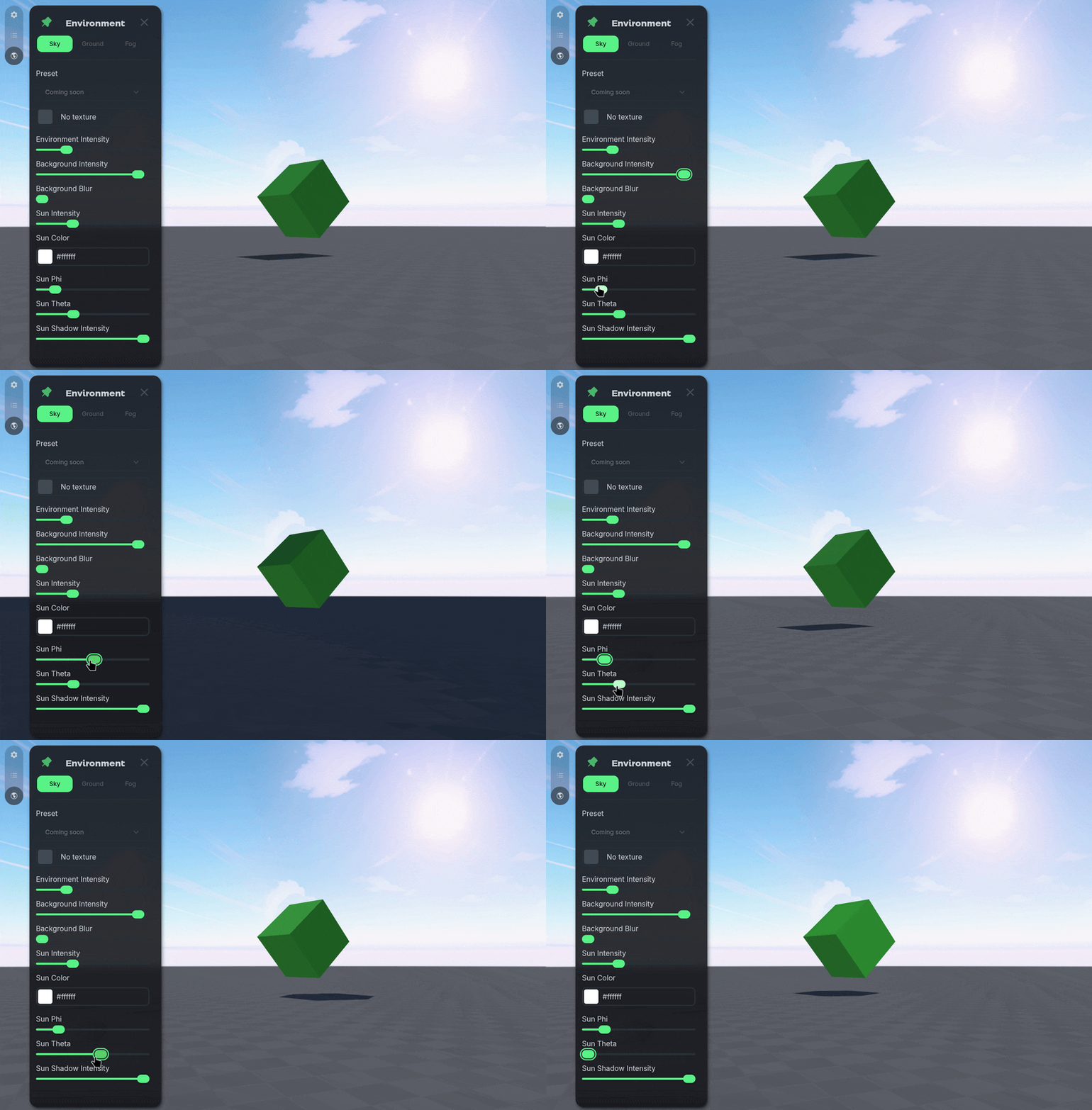
Sun Height and Direction
Sun Height and Direction
Adjusts the directions of the sun light.
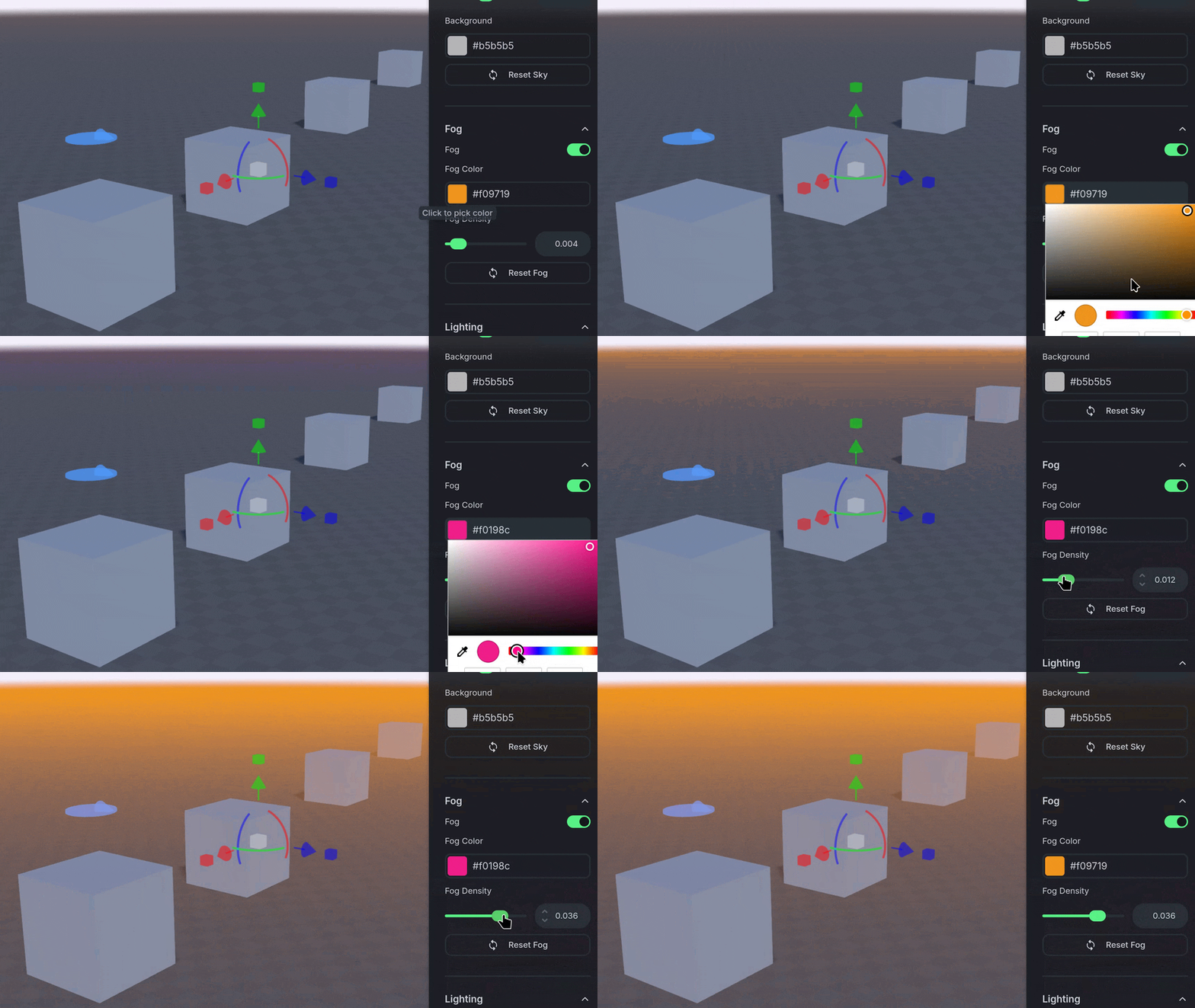
Fog
Fog
Adjust a fog overlay to the World based on your camera position relative to other objects.
Was this helpful?
Still need help? Ask the team