First Time Setup
Last updated About 1 month ago
Welcome New Nilonaut!
No download is required, Nilo works on most browsers on any operating system.
Once you register and log in, you’re free to explore, build, and play in Nilo!
Enable Graphics Acceleration!
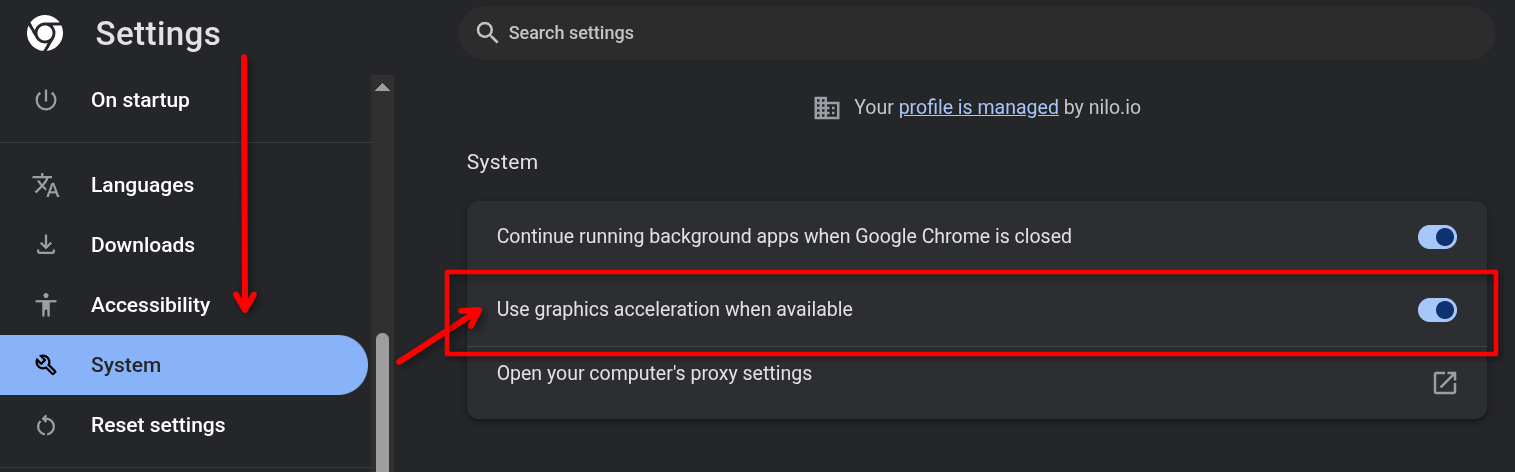
For optimal performance in Nilo, please ensure that Graphics (or Hardware) Acceleration is enabled in your browser settings. In Chrome, go to Settings > System and toggle "Use graphics acceleration when available"
Create your First World
Select the “Start Fresh” world on play.nilo.io
Generate your First Object
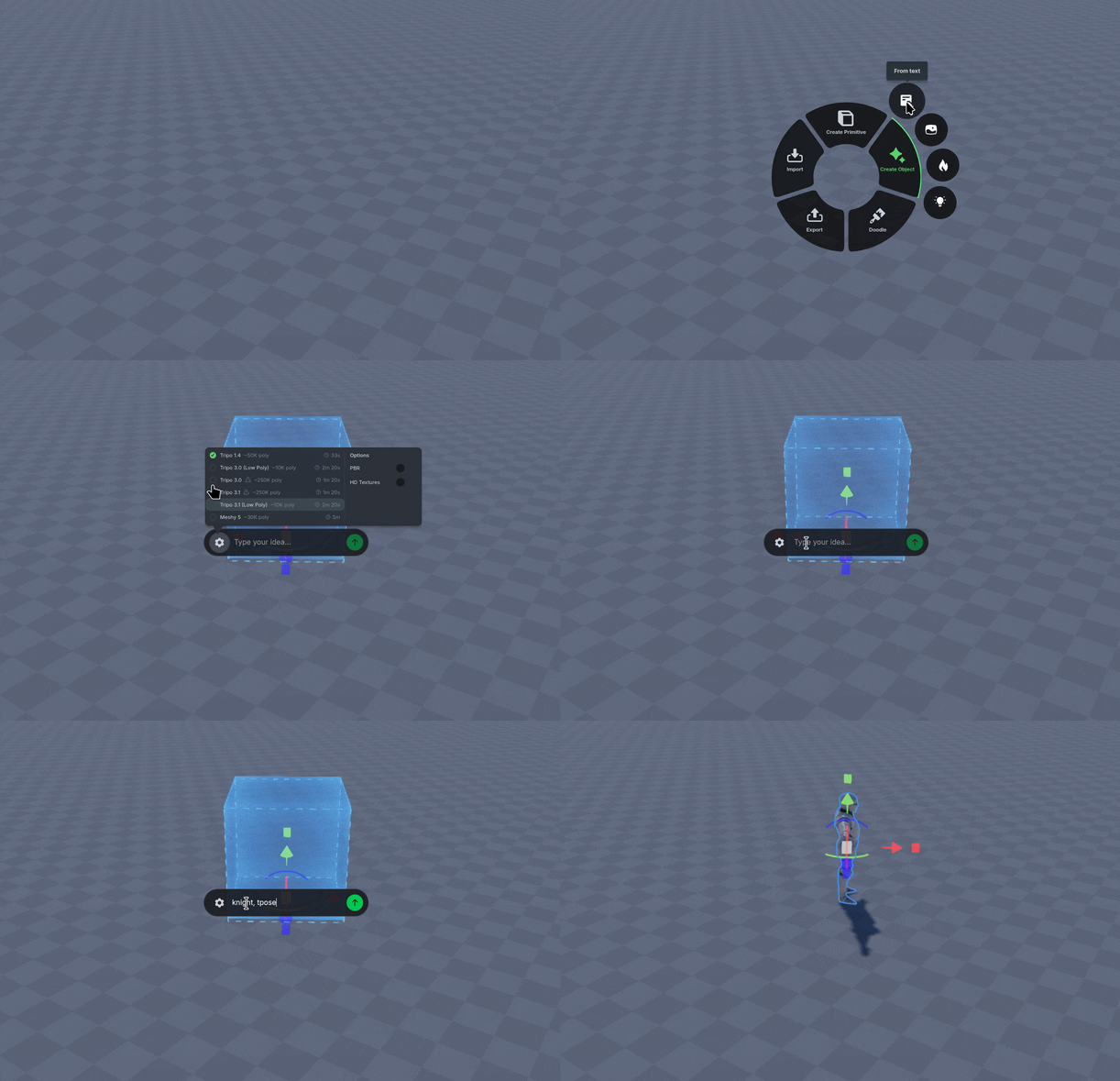
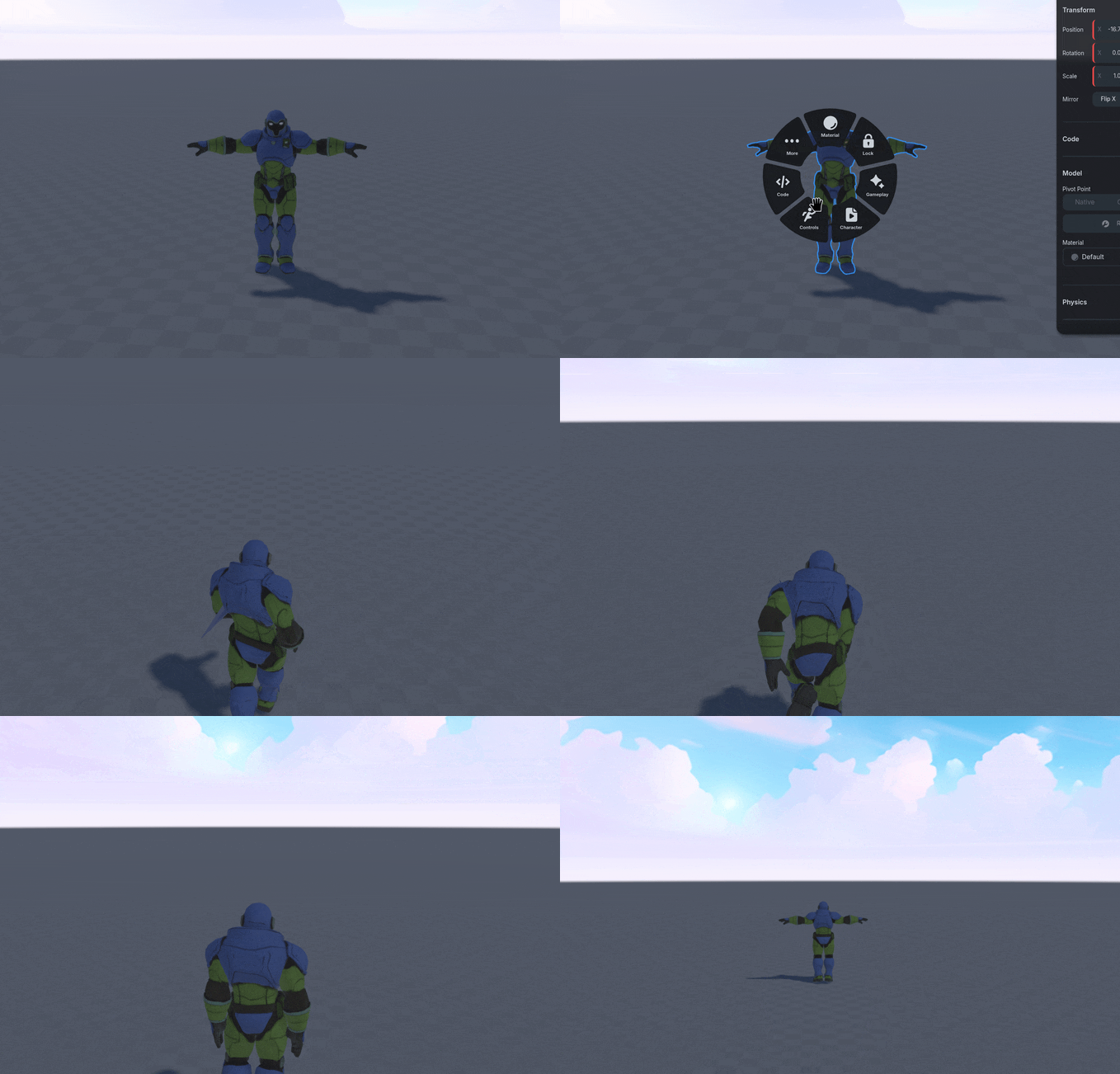
Open the Radial Menu using Right Click
Select Create Object, then from Text or an Image, then type in your prompt.
Use the Radial Menu to Rig the character you created, then Control the character.
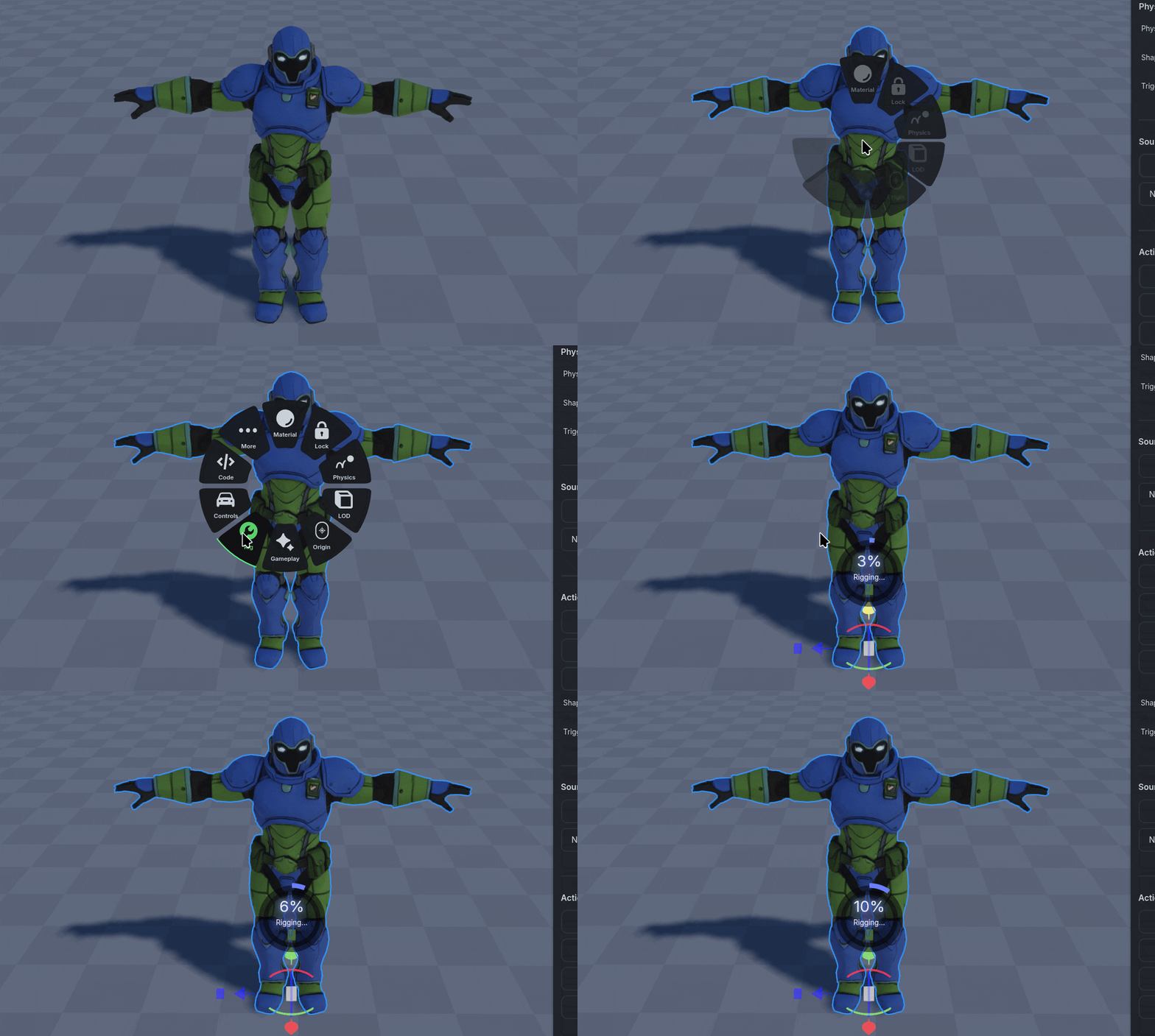
For Characters, we recommend prompts that end with t-pose for the best results when Rigging and Animating
Boom! Now you’re playing as your creation!
Key Concepts
Essential Shortcuts
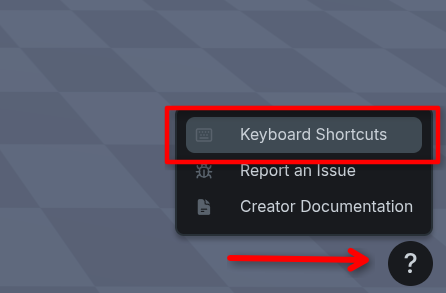
You can find a complete list of shortcuts in the Help “?” icon on the bottom right corner of the screen under “Keyboard Shortcuts”