Configuring Audio on an Object
Last updated 8 months ago
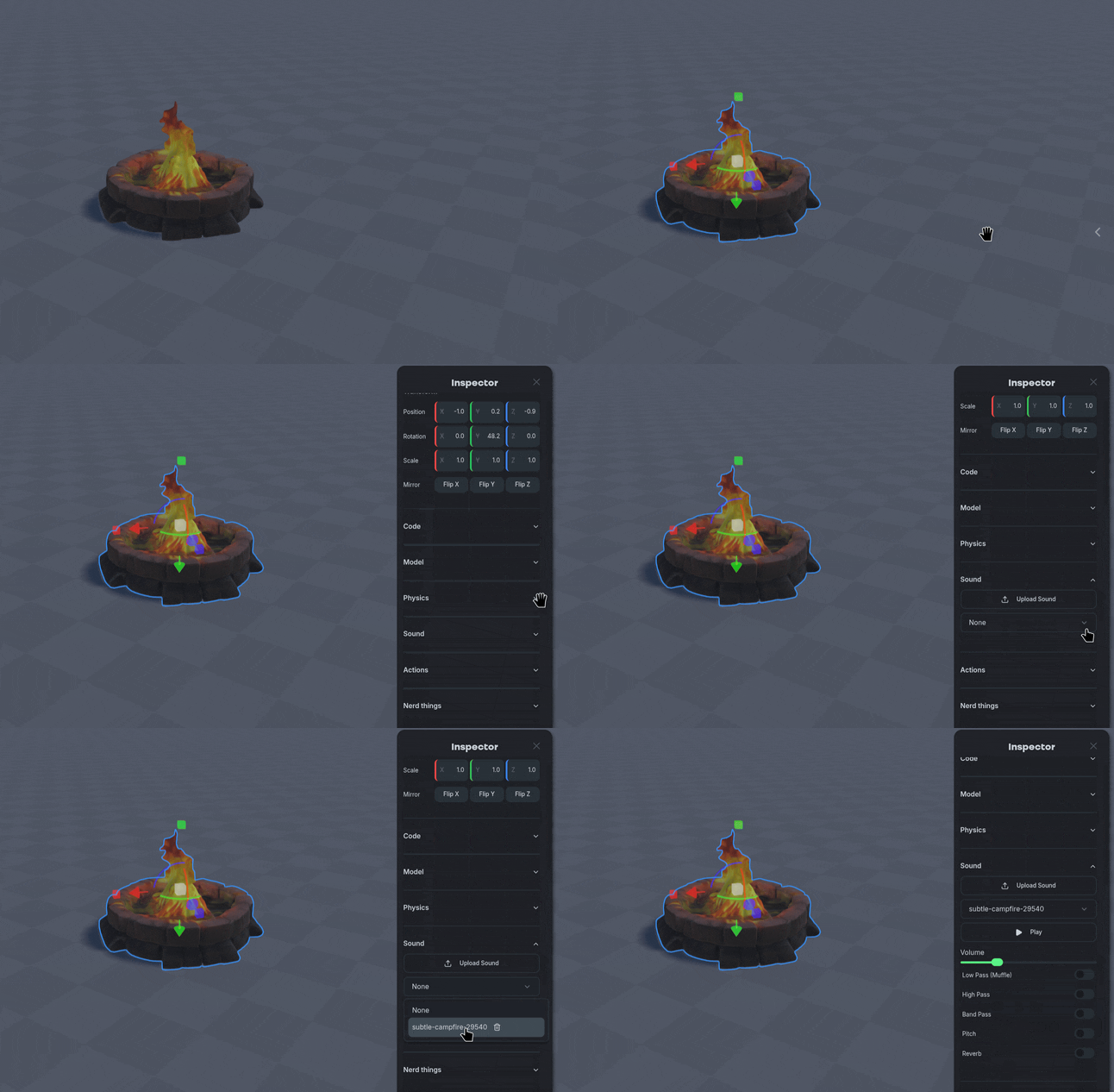
Select the object you want to modify the audio of and open the Inspector panel.
Navigate to the Sound section and select the drop down menu to choose an uploaded sound.
Select the audio file and modify the sound settings to suit your needs.
Sound Settings
Nilo supports a standard set of audio processing filters, use them to change the texture or feel of a sound.
Low Pass (Muffle)
Low Pass (Muffle)
This lets the low (bass) frequencies through and cuts out the high ones.
This is typically used to get the effects of listening through and object like a thick wall, or underwater.
High Pass
High Pass
This lets the high (treble) frequencies through and cuts the bass.
This is typically used to get the effects of old-school radios, removing the thump in the audio.
Band Pass
Band Pass
This cuts out both the very highs and the very lows, leaving only a specific "middle" band of sound.
This is typically used to get the effects of a megaphone or walkie-talkie.
Pitch
Pitch
This changes the speed/frequency of the audio signal without necessarily changing its duration.
This is typically used to change the tone of the audio.
Reverb
Reverb
This simulates the way sound bounces off surfaces in a physical space.
This is typically used to get the effects of an echo.
Was this helpful?
Still need help? Ask the team