Exporting from Nilo
Last updated About 2 months ago
Select the object(s) you want to Export from Nilo.
Right-Click the objects and choose the “. . .” option.
Select either the FBX, GLB, or STL export options.
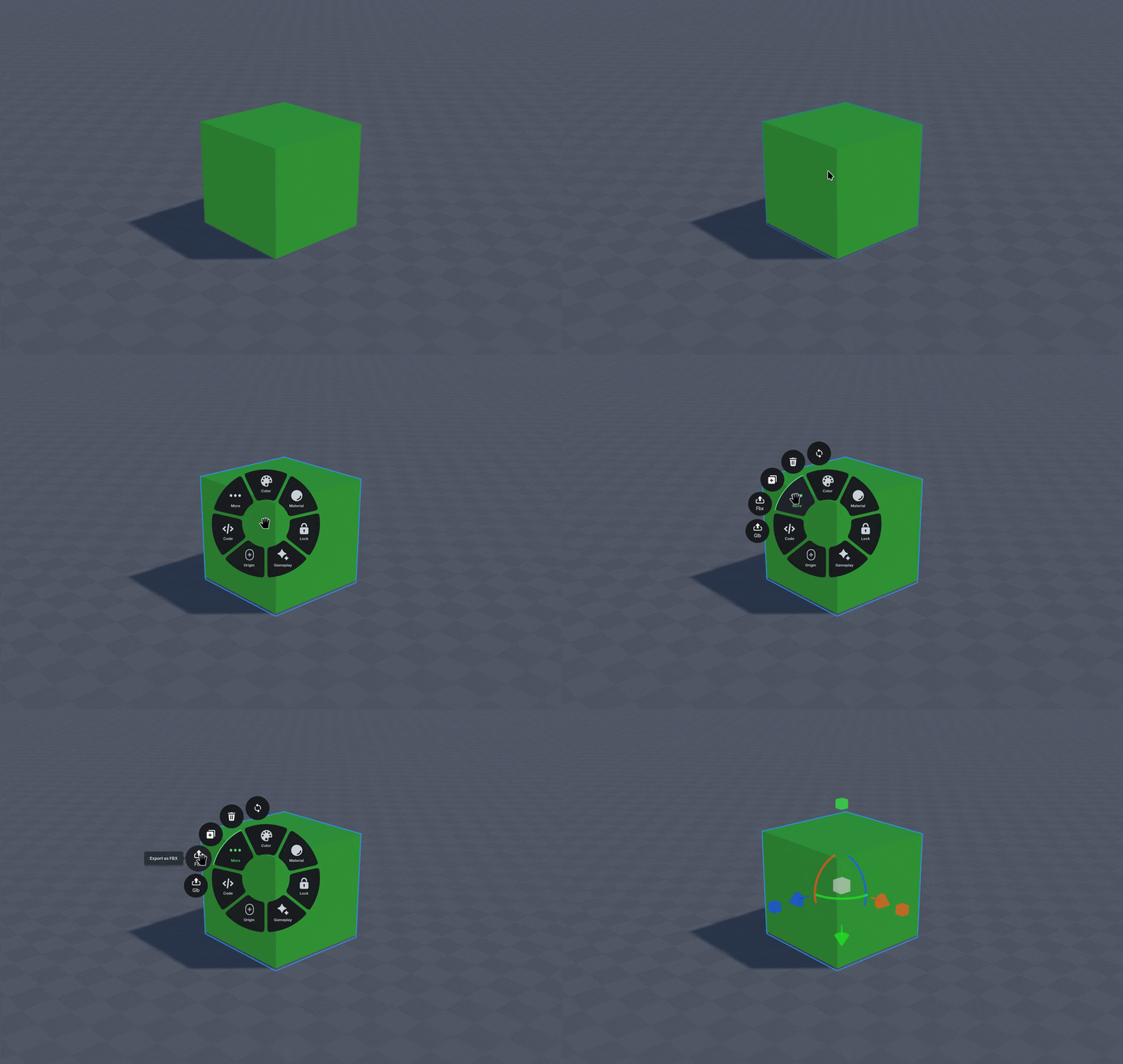
All selected objects will be exported in the same file, if you have multiple objects selected!
What is FBX?
FBX is designed to move data between professional software like Maya, Unity, and Blender. It uses more data than other file types to ensure platform-specific configurations do not get lost during the editing process.
What is GLB?
GLB is designed to be a complete, compact version of the object. It is self-contained and formatted well for web, mobile app, and Roblox use-cases.
GLB bundles everything— geometry, textures, and shaders—into one single file. You can typically import the file into most programs and it often just works
What is STL?
STL is designed for 3D printing. It only represent the surface geometry of an object as a raw mesh of triangles. Unlike other formats, it contains no information regarding color, texture.